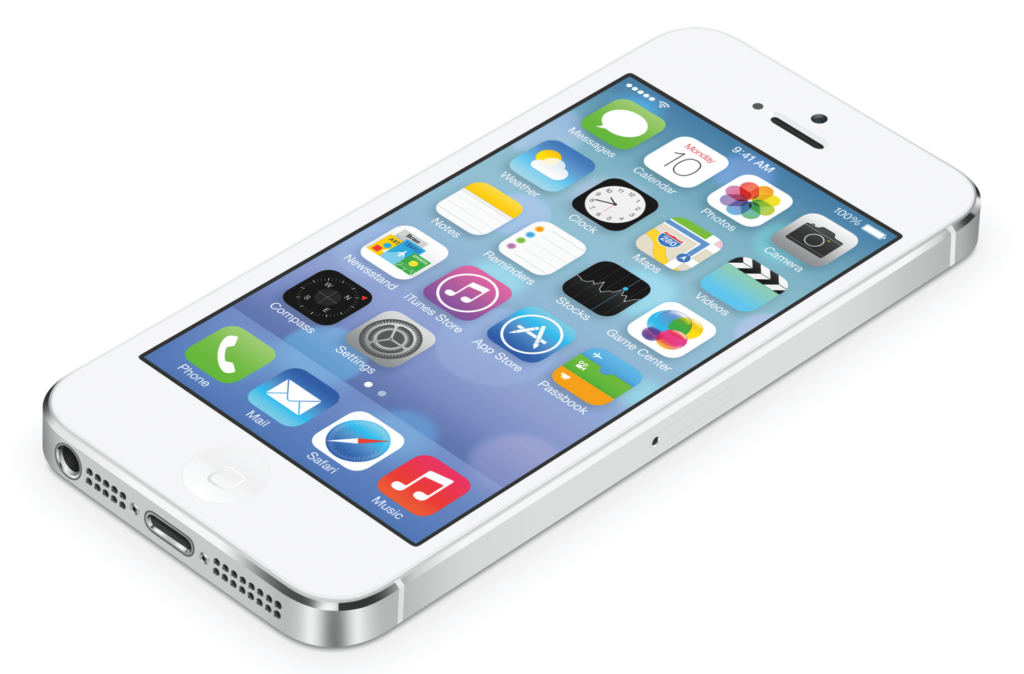

I remember arriving at a primary school classroom on a sunny Wednesday to find half the iPads refusing logins with a blunt ‘Storage Full’ message. Ten minutes of head-scratching later I realized this wasn’t about photos or apps—it was a reserved storage quirk of Shared iPad and a few syncing hiccups. In this short outline I’ll walk you through what I learned (and the odd tricks I picked up from forums and a few frantic Slack convos).
Why Shared iPad shows ‘Storage Full’ (the odd reservation)
When I troubleshoot Shared iPad Storage Issues, I remind teams that “Storage Full” often does not mean the iPad is packed with user photos and apps. In Shared iPad mode, iPadOS uses partitioning and pre-allocation. It needs a reserved block of iPad Storage to create a new user volume at sign-in. If the system can’t free that block, the login screen reports Storage Full—even when Settings shows space available.
Sarah Delgado, EdTech Admin: “I learned that Storage Full was telling us about reserved partitions, not actual user files—once we watched the iCloud sync, new logins worked.”
Reserved block + eviction: why logins fail
Each user session lives in its own volume. To make room for a new volume, iPadOS may evict (remove) older profiles. The catch: eviction is blocked when a profile has pending iCloud sync. If a student or employee signs out and their data hasn’t finished uploading to iCloud, iPadOS won’t purge that profile yet—so the reserved block can’t be reclaimed.
Pending iCloud sync is the most common trigger
I see this most after a busy class change. The previous user logs out, the next user tries to log in immediately, and the device throws Storage Full. Sync time can be minutes (or longer) depending on Wi‑Fi quality and how much data changed.
- Weak Wi‑Fi = slower upload = profile can’t be evicted
- Large app data (offline files, caches) = bigger sync backlog
User Storage, Storage Quota, and “resident users” reservations
MDM settings can make the reservation problem worse. Many deployments set a Storage Quota per Managed Apple Account, and a 2048MB minimum quota is often required for Shared iPad to function reliably. Also, some MDM configurations keep resident users on-device, and I’ve seen estimates around ~8GB reserved per resident profile. On 32GB iPads, a few resident profiles plus apps can leave too little free reserved space for new user volumes.
| What you see | What’s really happening |
|---|---|
| Storage Full at login | Reserved block for a new user volume can’t be created |
| Space “available” in Settings | Space exists, but not in the right reserved/evictable form |
Apple has improved Shared iPad storage handling in iPadOS 17/17.3 and later iPadOS 18 updates, but I still see this behavior in certain setups—especially with high quotas, many resident users, or unstable iCloud sync.
Immediate end-user fixes: wait, Wi‑Fi, and gentle nudges
When I see Shared iPad Login Issues that mention Storage Issues, I start with the safest moves first. Shared iPad needs a reserved block of iPad Storage to create a new user volume. If the last person’s data is still in iCloud Sync, the iPad can’t evict that profile yet—so it looks “full” even when it shouldn’t.
1) Wait after sign-out (often the fastest fix)
If a user just signed out, I wait a few minutes. The iPad may still be uploading the session, especially if the user had lots of photos, large files, or offline app data. This “pending sync” window varies with upload size and connection quality.
Mark Chen, MDM Engineer: “Most login failures I’ve seen were resolved by waiting for iCloud sync or by removing one bulky app; rescues are rarely instantaneous but often simple.”
2) Fix Wi‑Fi first (and turn cellular off)
A flaky Wi‑Fi signal—or a captive portal that needs a sign-in page—can silently block iCloud Sync. For Shared iPad, that means old profiles can’t upload and purge, and the next user can’t get a new volume.
- Connect to a known-good Wi‑Fi network (avoid guest networks with pop-up logins).
- Toggle Wi‑Fi off/on if needed.
- If the device has cellular, I turn it off to keep the iPad from bouncing between networks.
3) Use gentle storage nudges (quick wins)
If I need space urgently for a Temporary User login, I do small, low-risk cleanup:
- Open
Settings > General > iPad Storage - Enable or follow Offload Unused Apps suggestions
- Remove large local media (videos/photos) if it’s clearly safe to do so
These small changes can create just enough buffer for the next login without touching MDM settings.
4) If it still won’t free space: escalate (no factory reset)
If the device won’t clear space after waiting and stable Wi‑Fi, I ask an admin to remotely delete the signed-out profile via MDM (Jamf/Intune/Meraki). If an iPadOS update is needed, I use Finder on Mac or the Apple Devices app on Windows to update in place when possible. I avoid factory resets as a first resort—resets often don’t fix Shared iPad partitioning or quota configuration, and they add downtime.
Admin playbook: MDM, Apple School Manager, and long-term fixes
When Shared iPad logins fail with “insufficient storage,” I treat it as a policy problem, not a one-off. Shared iPad needs a reserved block to create a new user volume. If old users haven’t finished syncing to iCloud, their profiles can’t be evicted, and the next student can’t sign in.
Use your MDM Profile to delete stale users fast
My first lever is the MDM Profile (Jamf, Intune, Meraki, Mosyle). If a device is stuck, I remotely remove old user profiles to free space immediately—especially on 32GB iPads with lots of Pupil Profiles.
- Bulk-delete old profiles from the MDM console (target devices with high profile counts).
- Confirm the device has stable Wi‑Fi so logout sync can complete before eviction.
- Where supported, enable Temporary Sessions (Intune can delete user data after sign-out) to prevent profile buildup.
Right-size Resident Users and Storage Quota in Apple School Manager
Recurring issues usually mean my settings are too generous. I reduce Resident Users per device and lower the per-user Storage Quota in Apple School Manager or inside the MDM Enrollment Profile. I keep a practical floor: 2048MB minimum per Managed Apple ID when that requirement applies.
| Setting | What I change | Why it helps |
|---|---|---|
| Resident Users | Lower the cap (strict on 32GB) | Fewer local volumes competing for reserved space |
| Storage Quota | Reduce per-user allocation | More buffer for new logins and sync delays |
| Observed allocation | ~8GB per resident profile (varies) | Explains why devices “fill up” quickly |
Cut app bloat and keep iPadOS current
I also treat apps as storage pressure. I remove large apps via MDM, set offload policies where possible, and review the app list monthly. Finally, I stay current on iPadOS—Apple’s iPadOS 17/18 updates often include Shared iPad storage-management fixes (community reports go back to Oct 11, 2022 and Jan 13, 2021).
Emily Harper, IT Director: “We reduced our resident users and cut a 30% app footprint across devices; login issues dropped immediately—MDM policies are the lever.”
Patterns, forums, and the timeline of frustration
What I keep seeing in community threads
When I track Login Issues tied to Storage Issues on Shared iPad, the same story shows up across Jamf Nation, the Meraki Community, Reddit r/jamf, and EduGeek: the device needs a reserved storage block to create a new Shared Profile, but it can’t reclaim space if older users haven’t finished syncing. On 32GB iPads, that reserved space gets tight fast, so one stuck sync can block the next login.
These forums also show the problem is long-standing. I’ve seen recurring reports dated January 13, 2021 (EduGeek) and October 11, 2022 (community threads), with “fixed for a while” periods that often line up with an iPadOS Update, then regressions after later releases.
Temporary Session bugs and why resets don’t help
A repeated theme is Temporary Session Only mode failing in ways that look like storage, even when admins expect sessions to purge cleanly. Some admins report iPadOS 17.3 Temporary Session issues where profiles don’t evict on time, so the next user hits the same “not enough storage” wall.
Another pattern: factory resets don’t always “solve” it long-term. Community posts suggest the partition reservation behavior returns as soon as the same app load, quotas, and sync conditions come back—so the root cause is often policy and capacity, not a one-time corruption.
When it’s widespread, I look for policy-level causes
If many devices fail at once, I stop treating it like a single iPad problem and review the MDM Profile and enrollment settings:
- Resident user limits set too high for 32GB devices
- Quota per user too large (prevents eviction and new volume creation)
- Broad app deployments (app bloat) leaving no buffer for new user volumes
- Enrollment profile misconfiguration that changes Shared iPad behavior
Liam O’Connor, Community Moderator: “Threads helped us narrow the issue to MDM quota settings—community knowledge is invaluable for diagnosing quirks not yet fixed in OS updates.”
How I use forums without getting burned
I treat community fixes as testable hypotheses and cross-check them with Apple Support, Jamf/Meraki advisories, and Microsoft Learn (Intune behavior). When I file tickets, I include a tight timeline and state capture:
- iPad model/capacity (ex: 32GB) and current iPadOS Update version
- MDM Profile details: quota, resident users, Temporary Session settings
- Recent changes: new apps, Wi-Fi changes, or policy edits
Wildcard: privacy, a classroom scenario, and a hostel analogy
Privacy tangent on a Shared Device: cloud history vs. local Storage Space
When teachers see a Shared iPad block a login, they often assume “someone’s browsing history is filling the iPad.” That’s not how it works. Cloud data management is distinct from device partitioning, but it still shapes what people expect on a Multi User device. For example, Google Visual Search History (and other Google activity) lives in the user’s Google account, not inside the iPad’s Shared iPad user volume. If you need to manage that for privacy, use activity.google.com to review/delete activity, or takeout.google.com to export data. That can reduce privacy risk and confusion, but it won’t magically create the reserved block of storage iPadOS needs to spin up a new user volume.
Nina Patel, Privacy Lead: “Tell teachers that cloud data and device storage are cousins – related but not the same. Clearing cloud history helps with privacy, not the iPad’s partitioning.”
Classroom scenario: why small devices need strict User Profiles planning
Here’s the capacity trap I see most: a class of 25 pupils using 32GB iPads, configured for 5 resident users per device. On paper, that sounds fine—until you add real app footprints, cached content, and a few students who don’t finish syncing before the next login. Shared iPad needs enough free Storage Space to create a new profile volume. If prior users’ data is still uploading to iCloud, iPadOS can’t evict those profiles, and the next student hits the “insufficient storage” wall. In practice, class sizes matter for capacity: more rotations per period means more pressure on sync timing and eviction. This is why I treat resident-user count, per-user quota, and app bloat as one combined budget.
Hostel analogy: explaining reserved partitions and the Temporary Session wait
When I explain this to non-technical staff, I use a boutique hostel. Each guest (user) reserves a locker (a user volume). When they check out, the locker can’t be reassigned until their luggage is fully checked into the cloud. If Wi‑Fi is weak, the luggage transfer stalls, the locker stays “reserved,” and the next guest can’t get a key—no matter how many beds look empty. Once you see Shared iPad this way, the fixes make sense: improve Wi‑Fi, allow time for sync, and use MDM to remove old User Profiles so lockers actually free up for the next login.
TL;DR: Shared iPad requires reserved space for new user volumes; wait for iCloud sync, ensure Wi‑Fi, or use MDM (Jamf/Intune/Meraki) to delete profiles, lower quotas, remove app bloat, and update iPadOS.